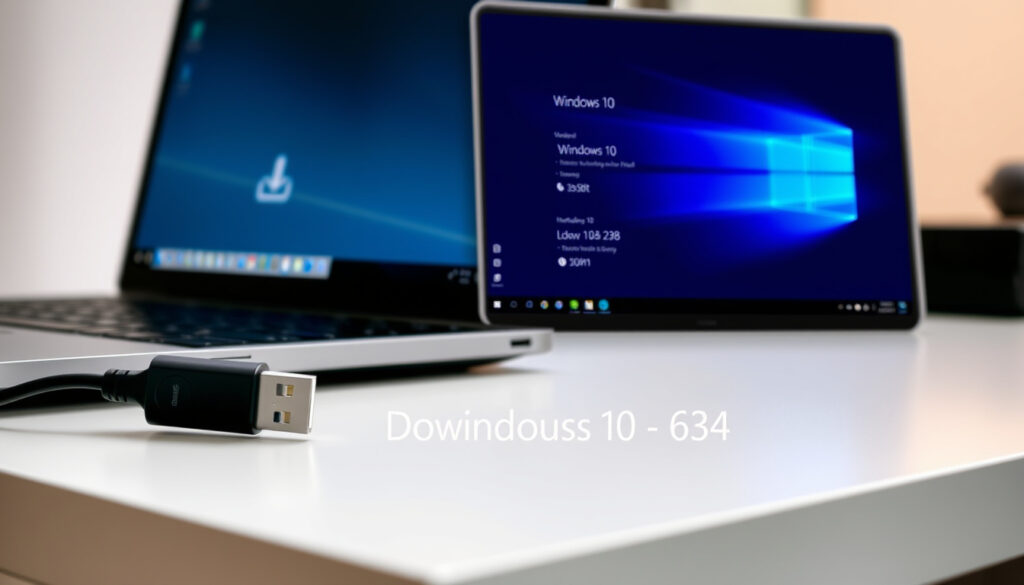
Windows 10 ISO Download – Official Guide (64-bit & 32-bit)
If you’ve ever needed to reinstall Windows 10 or set up a virtual machine, you already know the hunt for a reliable ISO file can feel like a maze. Microsoft’s official download page is still the safest bet, but it’s not always obvious how to get exactly the edition you need — especially now that support has ended.
Official source: Microsoft.com ·
File size (64-bit): ~5 GB ·
Latest version: 22H2 ·
Download options: ISO or Media Creation Tool
Quick snapshot
- Microsoft provides official Windows 10 ISO downloads free of charge (Microsoft Software Download (official site))
- 64-bit ISO is recommended for modern hardware (Microsoft Software Download (official site))
- Windows 10 ISOs work unmodified in virtual machines (Microsoft Software Download (official site))
- Whether third-party sites always host genuine unmodified ISOs
- Exact availability of older feature updates from unofficial sources
- Microsoft ended support for Windows 10 on October 14, 2025 (Microsoft Support (official guidance))
- Users can still download ISOs after support end, but no further security updates (Reddit r/sysadmin (IT community))
- Volume license customers can access ISOs through the Volume Licensing Service Center (per Reddit r/sysadmin (IT community))
Five key facts, one pattern: the official Microsoft download page is the only safe starting point, regardless of which edition you need.
A quick look at the core specifications confirms what you need to know before downloading.
| Specification | Value |
|---|---|
| Latest Windows 10 version | 22H2 (build 19045) (Windows Latest (Microsoft-focused news)) |
| Minimum RAM (32-bit) | 1 GB |
| Minimum RAM (64-bit) | 2 GB |
| File size | 4–5 GB (64-bit) / 3–4 GB (32-bit) |
| Official download URL | https://www.microsoft.com/software-download/windows10 (Microsoft Software Download (official site)) |
The pattern: this table confirms that Microsoft’s official URL is the only endpoint you should trust for specs and downloads.
How to Download Windows 10 64-bit ISO
The 64-bit edition is the standard for modern computers with 4 GB or more of RAM. Microsoft’s official page provides the 64-bit ISO directly or through the Media Creation Tool.
Find the correct edition
- Visit Microsoft Software Download (official site). Select “Windows 10” and click “Download now” to get the Media Creation Tool.
- If you want a direct ISO download, use a non-Windows browser (e.g., iOS or Linux) to access the same page — the option appears after user-agent change, as reported by Windows Latest (Microsoft-focused news).
Choose your language
- After selecting edition and architecture, the tool or page prompts you to pick a language. English (United States) is the default.
Start the download
- If using the Media Creation Tool, run MediaCreationTool.exe and accept the license terms. Choose “Create installation media for another PC” (Microsoft Tech Community (customer forum)).
- Select language, edition, and architecture. Then choose “ISO file” to save the installer locally (YouTube tutorial (community guide)).
The implication: the official tool remains the most reliable path to a genuine 64-bit ISO.
Where to Download Windows 10 Pro ISO
Windows 10 Pro adds BitLocker encryption, Remote Desktop, and other business features. The official source is the same, but the edition selection matters.
Official Microsoft site
- On the Microsoft Software Download page (official site), the Media Creation Tool offers all editions including Pro.
- To get a Pro-specific ISO, choose “Windows 10 Pro” during the edition selection step in the tool (Microsoft Tech Community (customer forum)).
Third-party options and risks
- Third-party download sites like FileHippo claim to host Windows 10 ISOs, but the risk of outdated or tampered files is real (Reddit r/sysadmin (IT community)).
- Always verify the SHA-1 checksum after downloading from any non-Microsoft source.
The catch: the only way to be certain you have a genuine Pro ISO is to use Microsoft’s own download channel.
Can I Download Windows 10 ISO for VMware?
Yes — the standard Windows 10 ISO works with VMware Workstation, Player, and VirtualBox without any special version.
VMware compatibility
- A regular Windows 10 ISO from Microsoft is fully compatible with VMware. No modification needed (Microsoft Software Download (official site)).
- Enable virtualization in BIOS/UEFI before installing.
Installation steps
- Download the ISO using the official method. In VMware, create a new virtual machine and point it to the downloaded ISO file (Corsair Help Center (hardware manufacturer)).
- During VM creation, you can skip entering a product key — select “I don’t have a product key” to install in evaluation mode.
Why this matters: for developers and testers, the same ISO you use for a physical install works perfectly in virtual environments.
Is FileHippo a Safe Source for Windows 10 ISO?
FileHippo is a well-known software archive, but downloading operating system ISOs from any third-party site carries inherent risk.
FileHippo reliability
- FileHippo claims to provide direct links to Microsoft’s own ISOs, not repackaged files. However, there is no guarantee that the file hasn’t been modified or replaced (Reddit r/sysadmin (IT community)).
- Microsoft’s official download page is the only source you can fully trust.
Alternatives
- Use the official Media Creation Tool from Microsoft Software Download (official site).
- If you must use a third-party archive, always verify the file checksum against Microsoft’s published values.
The pattern: when it comes to system files, convenience from third-party sites is never worth the security risk.
How to Download Windows 10 32-bit ISO
32-bit Windows 10 is only for older hardware with 1 GB of RAM or less. Microsoft still offers the 32-bit ISO through the same channels.
32-bit vs 64-bit
- 64-bit supports more than 4 GB RAM and runs most modern software. 32-bit is limited to 4 GB and fewer drivers (Microsoft Support (official guidance)).
- Most modern PCs should use 64-bit.
Download steps
- On the official Microsoft download page, when using the Media Creation Tool, select “32-bit (x86)” during the architecture step (Microsoft Tech Community (customer forum)).
- The resulting ISO will be about 3–4 GB in size.
The trade-off: 32-bit is increasingly obsolete; most users will get a better experience with 64-bit.
Upsides
- Official ISO is free and genuine
- Media Creation Tool handles download and bootable USB creation
- Supports virtualization without modifications
Downsides
- Microsoft no longer issues security updates as of October 2025
- Direct ISO download requires user-agent workaround on Windows
- Third-party sites may host outdated or tampered files
Step-by-Step Guide to Download Windows 10 ISO
Follow these steps for a safe, official download.
- Open the official Microsoft page. Go to Microsoft Software Download (official site) and scroll to “Windows 10”.
- Download the Media Creation Tool. Click “Download now” under the Windows 10 section. The file is MediaCreationTool.exe (Microsoft Support (official guidance)).
- Run the tool. Accept the license terms. Choose “Create installation media for another PC”.
- Select language, edition, and architecture. For most users, select “Windows 10” (it will include Home and Pro) and “64-bit (x64)”.
- Choose “ISO file”. At the “Choose which media to use” screen, select “ISO file” instead of USB flash drive. This saves the installer to your computer (YouTube tutorial (community guide)).
- Save the file. Choose a destination folder. The download may take 30–60 minutes depending on connection speed.
- (Optional) Create bootable USB. Use the Media Creation Tool again or a tool like Rufus to write the ISO to a USB drive (Corsair Help Center (hardware manufacturer)).
Confirmed and Unclear Claims
Based on available sources, here’s what we know for certain — and what remains uncertain.
Confirmed facts
- Microsoft provides official Windows 10 ISO downloads free of charge (Microsoft Software Download (official site)).
- 64-bit ISO is recommended for modern hardware (per Microsoft Support (official guidance)).
- Windows 10 ISOs can be used for virtual machines without modification (Corsair Help Center (hardware manufacturer)).
- Support ended on October 14, 2025 (Microsoft Support (official guidance)).
What’s unclear
- Whether third-party sites always host genuine unmodified ISOs. According to Reddit r/sysadmin (IT community), users have reported tampered files.
- Exact availability of older feature updates outside of Microsoft’s official channel. The Internet Archive hosts older versions, but these are not verified by Microsoft (Internet Archive (digital library)).
Quotes and Expert Perspectives
The Media Creation Tool is the simplest way to get a clean, official Windows 10 ISO. Users should always use Microsoft’s own utility to avoid malware.
— Microsoft Support (official guidance)
After switching to mobile view on the Microsoft download page, you’ll see direct ISO download links for Windows 10 22H2. This is the only official method to get the full ISO without the tool.
Download the Media Creation Tool from the official page, and then choose ‘ISO file’ at the final step. That’s it — no need to hunt on third-party sites.
— Microsoft Tech Community (customer forum)
PSA: Microsoft’s page hides the direct ISO link unless you use a non-Windows user agent. Once you do, you can download the ISO directly without the Media Creation Tool.
— Reddit r/sysadmin (IT community)
Summary
Downloading a Windows 10 ISO safely is straightforward if you stick to Microsoft’s official channels. The Media Creation Tool remains the most trusted method, with direct ISO downloads available via a user-agent trick. For anyone in New Zealand or elsewhere who still needs Windows 10 for legacy hardware or virtual machines, the choice is clear: use Microsoft’s own download page, or risk installing an unverified file. After Windows 10 support ended in October 2025, the only guarantee of a genuine ISO is a direct Microsoft download.
Related reading: Windows 12 Release Date: Latest Rumors Point to 2027 · Computer Repair Near Me: Costs, Signs & When to Replace
Frequently asked questions
How much does Windows 10 ISO cost?
Microsoft provides the Windows 10 ISO for free. You only need a product key if you want to activate the license after installation.
What is the difference between Windows 10 Home and Pro?
Pro includes BitLocker encryption, Remote Desktop, and Group Policy management. Home lacks these features but is sufficient for most home users.
Can I install Windows 10 from ISO without a license key?
Yes. During installation, click “I don’t have a product key” to install in evaluation mode. You can activate later.
How long does the Windows 10 ISO download take?
With a 50 Mbps connection, the 5 GB ISO takes about 15 minutes. Slower connections may take over an hour.
Do I need an internet connection during installation?
An internet connection is required to download updates during setup, but offline installation is possible if you select “I don’t have internet” during OOBE.
Can I upgrade from Windows 7 or 8 using an ISO?
Microsoft officially supports upgrades from Windows 7 SP1 or Windows 8.1 to Windows 10. Boot from the ISO and choose “Upgrade”.
What if my computer does not support 64-bit?
If your processor is 64-bit capable but you have 4 GB or more RAM, use the 64-bit ISO. If it’s a 32-bit-only CPU (rare after 2010), use the 32-bit ISO.
More related posts
 How to Make a Cake in a Mug: Easy 3-Ingredient Recipe & More
 Xiaomi 17 Pro Max NZ: Price, Availability & Specs (2025)
 Biggest City in the World 2025: Jakarta Tops Population List
 Windows 12 Release Date: Latest Rumors Point to 2027
 New World Easter Eggs 2026: Rare, Unhealthy & Best Eggs to Buy
 Pre Settlement Inspection NZ: Checklist, Red Flags & Liability
 Best Small Business Invoice Software: Top Picks for Ireland
 Business for Sale Palmerston North: Finding & Buying Guide