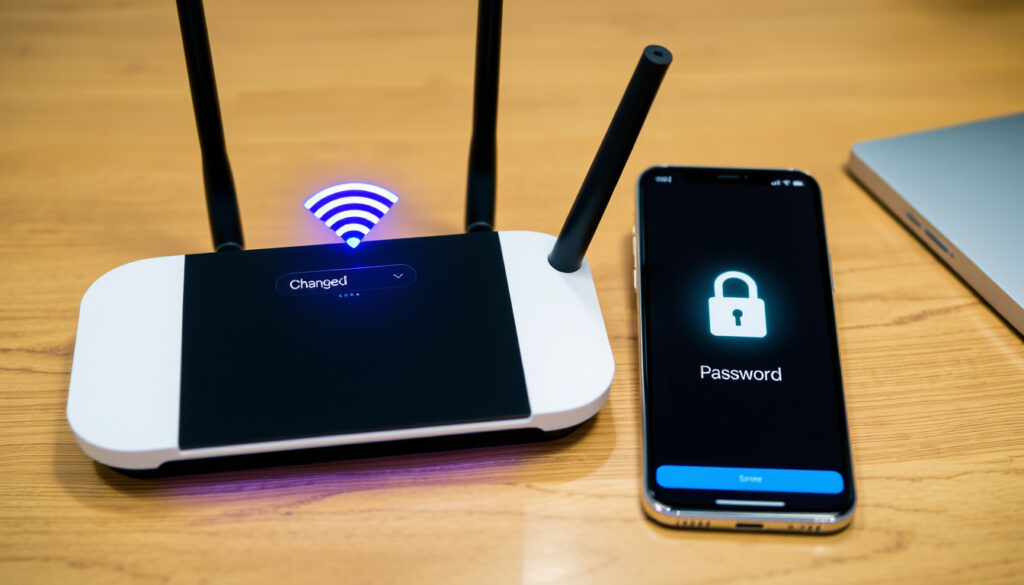
How to Change WiFi Password: Phone and Router Steps
Whether you are protecting your home network or just got a nudge from a suspicious neighbor, changing your Wi-Fi password is something most people do only once every couple of years—and then scramble to remember how. The good news is the process takes less than five minutes once you know where to look, and you can do it entirely from your phone without touching a computer.
Typical steps: 4 · Time required: 1–5 minutes · Access method: Router admin page · Mobile support: Android / iOS · Common routers: NETGEAR, D-Link, Huawei
Quick snapshot
- Access via 192.168.1.1 or 192.168.0.1 (Asurion tech support)
- Default login is usually admin/admin (EPB tech support)
- Change lives in Wireless or Wireless Security section (Asurion tech support)
- Some Android phones have “Manage Router” in advanced settings, but availability varies by manufacturer and Android version (YouTube guide)
- Router admin page text can be small on phone screens; zooming helps but the experience is not always smooth (YouTube guide)
- ISP apps increasingly let users change Wi-Fi credentials without touching the router at all—login credentials are managed through the provider account (Asurion tech support)
- Reconnect all devices after saving the new password; every phone, laptop, and smart device in your home will prompt for the updated password (EPB tech support)
The table below summarizes the technical parameters you will encounter when accessing your router settings.
| Parameter | Typical value |
|---|---|
| Default gateway | 192.168.1.1 or 192.168.0.1 |
| Common admin login | admin / admin |
| Password field label | PSK or WPA key |
| Recommended length | 12+ characters |
| Encryption standard | WPA2 / WPA3 |
| Time to apply | Immediate after save |
How can I change my home Wi-Fi password?
The most direct route is through your router’s admin page. Open any web browser on a device connected to your home network, type 192.168.1.1 into the address bar, and press Enter. If that address does not work, try 192.168.0.1—both are standard defaults for most consumer routers (Asurion tech support). You will be prompted for a username and password; the default credentials are typically admin for both fields, though these vary by manufacturer, so check the sticker on the router itself for the exact values (EPB tech support).
The default login works only if you have never changed it. If someone else set up your router or you inherited it from a previous occupant, the admin password may have been updated. In that case, a factory reset restores the defaults—but it also disconnects every device on your network.
Once logged in, look for a section called Wireless, Wireless Settings, or Wireless Security in the left-hand menu. Inside that section, you will find a field labeled PSK, WPA key, or Password—this is where you change the Wi-Fi password. Enter your new password, save the settings, and your network begins using the new credentials immediately (YouTube how-to guide).
The safest passwords are long and mix letters, numbers, and symbols. Twelve characters or more is the practical minimum; shorter passwords are easier to crack and are flagged by security guidance from major providers (YouTube how-to guide).
The implication: most people can change their password in under three minutes if they have the router label handy. The bottleneck is usually finding the default login, not the actual steps.
How to change Wi-Fi password from phone?
The browser method works identically on Android and iOS—connect to the Wi-Fi, open your browser, enter the router IP, log in, and change the password (YouTube mobile guide). The main challenge is the small screen: router admin pages are designed for desktop monitors, so zoom in as needed to read field labels clearly (YouTube guide).
Android steps
- Open Settings > Network & Internet > Internet (Asurion tech support)
- Tap the gear icon next to your connected network, then look for the router IP address
- Enter that IP in your browser, log in with admin credentials, and navigate to Wireless Settings
- Some Android phones also offer a “Manage Router” shortcut in the advanced Wi-Fi settings, though this varies by manufacturer (YouTube guide)
- After saving, forget the old network via Settings > Network & Internet > Internet > Forget, then reconnect with the new password (Asurion tech support)
iPhone steps
- Open Settings > Wi-Fi and tap the “i” icon next to your network (EPB tech support)
- Scroll down to find the router IP address listed under “Router”
- Copy the IP, paste it into Safari, log in with admin credentials, and proceed to the Wireless section
- After saving, go back to the Wi-Fi settings, tap the “i” icon, and select Forget This Network; restart Wi-Fi if the page does not refresh cleanly, then reconnect with the new password (Asurion tech support)
What this means: if you manage multiple routers or have a less common model, a dedicated admin app can save guesswork. For most users with standard ISP-provided routers, the built-in browser approach covers the job without installing anything.
Is changing your router password the same as your WiFi password?
These are two separate credentials serving different purposes. The router admin password controls access to the router’s settings page—where you configure the network name, security type, and, yes, the Wi-Fi password. The Wi-Fi password (also called the WPA key or PSK) is what your devices use to connect to your network (Asurion tech support).
It is good practice to change both: keep the admin password strong and distinct from the Wi-Fi password, since anyone with admin access can change the network credentials. Default admin logins are publicly documented, so leaving them unchanged is an open invitation to anyone within radio range.
The pattern: changing your Wi-Fi password does not automatically update the admin password, and vice versa. If you share admin access with a roommate or technician, consider updating both passwords at the same time and storing them in a password manager.
Can I change my Wi-Fi password myself?
Yes—the process does not require your internet service provider. Every consumer router ships with the tools to change the Wi-Fi password built into its admin interface. All you need is a device connected to the network and the default login (Asurion tech support).
- No ISP visit required. The steps above work on any router regardless of which company provides your internet.
- Self-service ISP tools. Many providers now offer websites or mobile apps that let you manage your Wi-Fi name and password through your account, without opening the router admin page at all (Asurion tech support). Check your provider’s support site for a “Manage Wi-Fi” or “My Account” feature.
- No technical background needed. If you can follow a settings menu on a phone, you can change your Wi-Fi password. The technical jargon in router pages (PSK, WPA2, SSID) is intimidating at first glance, but each field is clearly labeled and the save button is usually impossible to miss.
The trade-off: going through the ISP app is more convenient but depends on your provider supporting the feature. Not all ISPs offer it, and regional availability varies. For those who do, it removes the need to handle router login credentials altogether.
Can neighbors use my Wi-Fi without my password?
A neighbor with your password can connect without your knowledge. The simplest protection is a strong, unique password changed regularly—WPA2 or WPA3 encryption is very difficult to crack if the password is complex enough (Webroot security guide). Here are the layers that matter most:
- Encryption type. WPA3 is the strongest current standard; WPA2 is still widely used and secure if your password is strong. Avoid WEP, which can be broken in minutes.
- Hide SSID. You can tell your router to stop broadcasting your network name. Devices still connect if you enter the name manually, but casual scanning tools will not see your network at all. This is optional but adds a small barrier.
- Regular changes. If a neighbor or guest has had access, changing the password locks them out immediately. Make sure all your own devices are reconnected before you consider the job done.
If you suspect an unauthorized device is on your network, log into the router admin page and check the “Connected Devices” or “DHCP Clients” list. Unknown device MAC addresses can be blocked, and the admin password should be changed if it is still at default.
Why this matters: the average home network now carries sensitive data—banking sessions, work credentials, smart home controls. An unlocked Wi-Fi network is an open door, and the consequences extend beyond slow internet speeds.
Upsides
- No ISP visit or technician needed
- Works from any phone or laptop on the network
- ISP apps remove the need for default login credentials
- Strong passwords and WPA3 protect against unauthorized access
Downsides
- Default admin credentials may have been changed by previous owners
- Router admin pages are not optimized for mobile browsers
- Some Android router admin apps are poorly maintained or have limited device support
- Forgetting to reconnect devices after the change causes temporary lockouts
“Many internet providers let you manage Wi-Fi devices through their websites or mobile apps.”
— Asurion tech support experts
“Factory reset your router. Still locked out? Resetting your router restores the default settings.”
— EPB tech support team
For anyone who has been putting off this task, the bottom line is straightforward: it takes a few minutes, requires no technical expertise, and directly protects every device on your network. Start with the default gateway address on the router label, try admin/admin as the login, and work through the Wireless Settings section. If the ISP offers an app route, that is the fastest path of all—account credentials replace the router login entirely.
Related reading: How to Play Solitaire: Step-by-Step Rules & Setup · How to Choose a Dehumidifier: 12L vs 20L Size Guide
Accessing router settings to change your WiFi password usually starts by entering 192.168.1.1 in the browser, with the 192.168.1.1 login guide covering load issues and steps.
Frequently asked questions
Can Wi-Fi passwords be changed?
Yes. Every consumer router supports changing the Wi-Fi password through its admin interface. You can also change it through your ISP’s website or mobile app if your provider offers that feature.
How do I change my NETGEAR router password?
Connect to the NETGEAR network, open a browser, go to routerlogin.net or type 192.168.1.1. Log in with the admin credentials (default is admin/password, printed on the router label). Navigate to Wireless or Advanced > Setup > Wireless Settings, update the password in the PSK field, and click Apply. Reconnect all devices with the new password.
How to change WiFi password on Sky?
Sky routers typically use 192.168.0.1 as the default gateway. Log in with the admin details on the router label, go to Wireless in the left menu, change the password, and save. Alternatively, log into your Sky account through the My Sky app to access network settings without touching the router directly.
How to change WiFi password Huawei?
Access the Huawei router admin page at 192.168.1.1 or 192.168.3.1 (varies by model). Log in with the credentials on the device label. Go to WLAN or Wireless Settings, find the WPA Pre-Shared Key field, update it, and click Apply. Reconnect your devices using the new password.
How to see Wi-Fi password on Android phone?
Open Settings > Network & Internet > Internet, tap your connected network, then tap the gear icon. On some Android versions you can view the saved password here; on others it may require root access or a QR code scan provided by the router admin page. The method varies by Android version and manufacturer.
How can I change my JioFiber router password?
Open a browser and go to jiofi.local.html or 192.168.29.1. Log in with the admin credentials (often printed on the JioFiber device). Navigate to Settings > Wi-Fi, update the password in the security section, and save. You can also manage JioFiber settings through the MyJio app if you prefer not using the web interface.
More related posts
 Ice Cream Near Me: The Mobile, AL Shop That Beats the Chains
 Air New Zealand 787-9 Dreamliner: Seat Maps & Reviews
 Chemist Warehouse The Palms: Hours, Services & Reviews
 How Many Episodes in Adolescence? Episode Count Guide
 King of Snake Reviews: Is It Worth the Hype? (2025)
 Figure Skating Schedule and Results 2026 – Olympics, ISU, Today
 Tauranga to Wellington Flights – Direct Schedules, Fares and Tips
 Pizza Quattro Formaggi Near Me – Top Local Guide and Tips